How to Prepare Your Device for Sale: The Complete techtrade Seller’s Checklist
How to Prepare Your Device for Sale
Selling a smartphone, tablet, iPad, MacBook or laptop is easier when the device is prepared properly before you submit your request. Good preparation helps you describe the device accurately, protect your personal information and reduce unnecessary delays during review.
A sell request should clearly explain what the device is, what condition it is in and what accessories or issues are relevant. The more accurate the information, the easier it is to understand the device.
Identify the exact device
Start by confirming the correct category, brand and model. Devices in the same product family can look similar while using different processors, storage capacities or generations.
Check the device settings, system information, original packaging or model markings. Record the exact model, storage, colour and, for laptops, processor and memory where relevant.
Check storage capacity
Storage is an important specification. A phone may be available in 64GB, 128GB, 256GB or 512GB versions, while laptops and MacBooks may use 256GB, 512GB, 1TB or more.
Use the device settings rather than guessing.
Record the purchase year if known
If you know when the device was purchased, enter the year accurately. If the form asks whether it was bought in the UK, answer based on the real purchase information.
Avoid guessing if you are not sure.
Inspect cosmetic condition
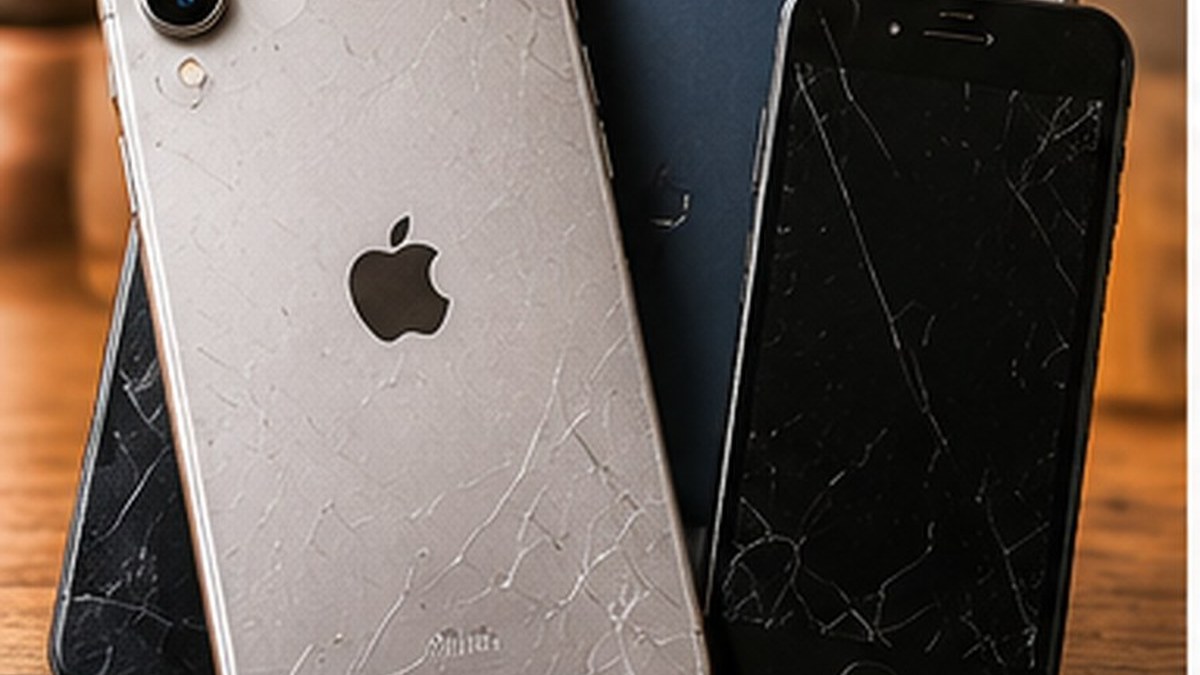
Look at the device carefully in good lighting. Check for scratches, dents, cracks, chipped corners, worn buttons, damaged camera areas, damaged ports or hinge wear on laptops.
Normal wear and serious damage are not the same, but both should be described honestly.
Check the screen
Inspect the display for cracks, deep scratches, dead pixels, lines, discolouration, touch problems or pressure marks.
If a screen protector is fitted, try to distinguish damage to the protector from damage to the actual screen.
Test important functions
A device can look good but still have functional faults. Test the functions you can reasonably check.
For smartphones and tablets, check power, charging, touchscreen, cameras, speakers, microphone, buttons, Wi-Fi and Bluetooth.
For laptops and MacBooks, check power, charger, battery, keyboard, trackpad, display, Wi-Fi, Bluetooth, ports, speakers and webcam.
If something does not work correctly, include it in the request.
Check battery condition
Battery condition affects usability. If the operating system provides battery-health information, note it accurately. If the battery drains quickly, shuts down unexpectedly or shows a service warning, mention that.
For laptops, confirm whether the charger is included and whether charging works normally.
Be clear about faults
Known faults should be stated clearly. Examples include cracked screens, weak batteries, charging issues, damaged cameras, speaker problems, keyboard faults, overheating, random restarts or Wi-Fi problems.
Clear information helps the submitted request match the actual device.
List accessories correctly
If the form asks about accessories, select only the items you actually have and intend to provide. These may include a charger, cable, original box, headphones, case, keyboard or stylus.
Do not select an item simply because the device originally came with it.
Take clear photos
Good photographs help show the device condition.
Use bright lighting and a simple background. Take photos of the front, back, sides, screen and any visible damage. For laptops, include the lid, keyboard, trackpad, screen and ports.
Avoid filters or edits that hide marks or change colours.
Clean the device carefully
A basic clean helps the device condition appear clearly. Turn the device off first and use safe cleaning methods for the model. Do not spray liquid directly into ports, speakers or keyboards.
Do not attempt risky repairs just to improve appearance.
Back up your personal data
Before a device changes ownership, protect your information. Back up photos, videos, contacts, documents, messages, notes, work files and other important information.
Do not erase the device until you have confirmed the backup is complete.
Move authentication access
If you use the device for two-factor authentication, banking, email, work accounts or password managers, make sure you can still access those services from another device before reset.
This step is easy to forget and can cause problems after the old device is erased.
Sign out of personal accounts
Depending on the platform, you may need to remove Apple ID, Google, Microsoft or manufacturer accounts. Work or school devices may also use management profiles.
Never share your account password. Remove the account yourself using the official settings.
Remove activation locks
Apple Find My, Google device protection and other security features can prevent a new user from setting up a device.
Follow the official platform steps to remove these locks at the appropriate stage.
Remove SIM and memory cards
Before handover, remove any SIM card that belongs to you. If the device uses a removable memory card and you are not including it, remove that as well.
Check the slots carefully so personal storage is not accidentally transferred.
Factory reset at the correct time
A factory reset helps remove personal data, but it should happen only after the backup is confirmed and account locks are removed correctly.
Use the official reset or erase function for the operating system and exact model.
Check IMEI or serial information
Some sell forms may ask for an IMEI or serial number. These identifiers can usually be found in device settings or system information.
Enter sensitive identifiers only into the appropriate secure field. Do not post them publicly.
Write an accurate condition description
A useful description is factual and specific.
For example:
“Screen intact with light surface marks. Charging works normally. Battery lasts less than when new. Small dent on one corner.”
This is more useful than simply writing “good condition.”
Provide accurate contact details
Make sure your full name, email, phone, postcode, address and preferred contact method are correct. Incorrect details can delay communication even when the device information is complete.
Review before submitting
Before pressing Submit, check the category, brand, model, storage, colour, purchase year, condition, screen condition, battery information, accessories, faults, photos and contact details.
A short final review can prevent many avoidable errors.
Understand the request is the starting point
The information entered in a sell request is based on your description. The actual device may later need to be checked or verified. If the model or condition differs from the original request, the review can change.
Accuracy is therefore more important than trying to make the device sound better.
Do not hide damage
Visible or functional damage should be disclosed. A faulty device may still be suitable for submission depending on the current techtrade process, but the request should match the real condition.
Keep the device safe after submitting
After sending the request, continue to protect the device from new damage. If its condition changes before the next stage, update or explain the change.
Seller checklist
Before submitting, confirm the correct category, exact model, storage, colour, purchase year if known, IMEI or serial where required, cosmetic condition, screen condition, battery condition, working functions, known faults, accessories, clear photos, data backup, account removal and accurate contact details.
Frequently asked questions
Can I submit a device with scratches?
Yes, if the category is accepted by the current process. Describe the scratches accurately.
What if the device has a fault?
State the fault clearly. Do not mark the device as fully working if an important function is damaged or unreliable.
Should I reset the device immediately?
Back up your data and prepare your account access first. Complete the reset at the appropriate stage after confirming the backup.
Do I need the original box?
Only select the box if you actually have it and intend to provide it.
Why are photos important?
Photos help show the cosmetic condition and visible damage clearly.
Final thoughts
Preparing a device for sale is mainly about accuracy and security. Identify the exact model, check physical and functional condition, state faults clearly, list the correct accessories and take useful photos. At the same time, protect your personal information by backing up important data and preparing your accounts for safe removal.
When the submitted information matches the real device, the sell request becomes easier to review and easier to progress through techtrade.
Looking for your next device?
Browse available devices or sell the tech you no longer need with Techtrade.